illyshop
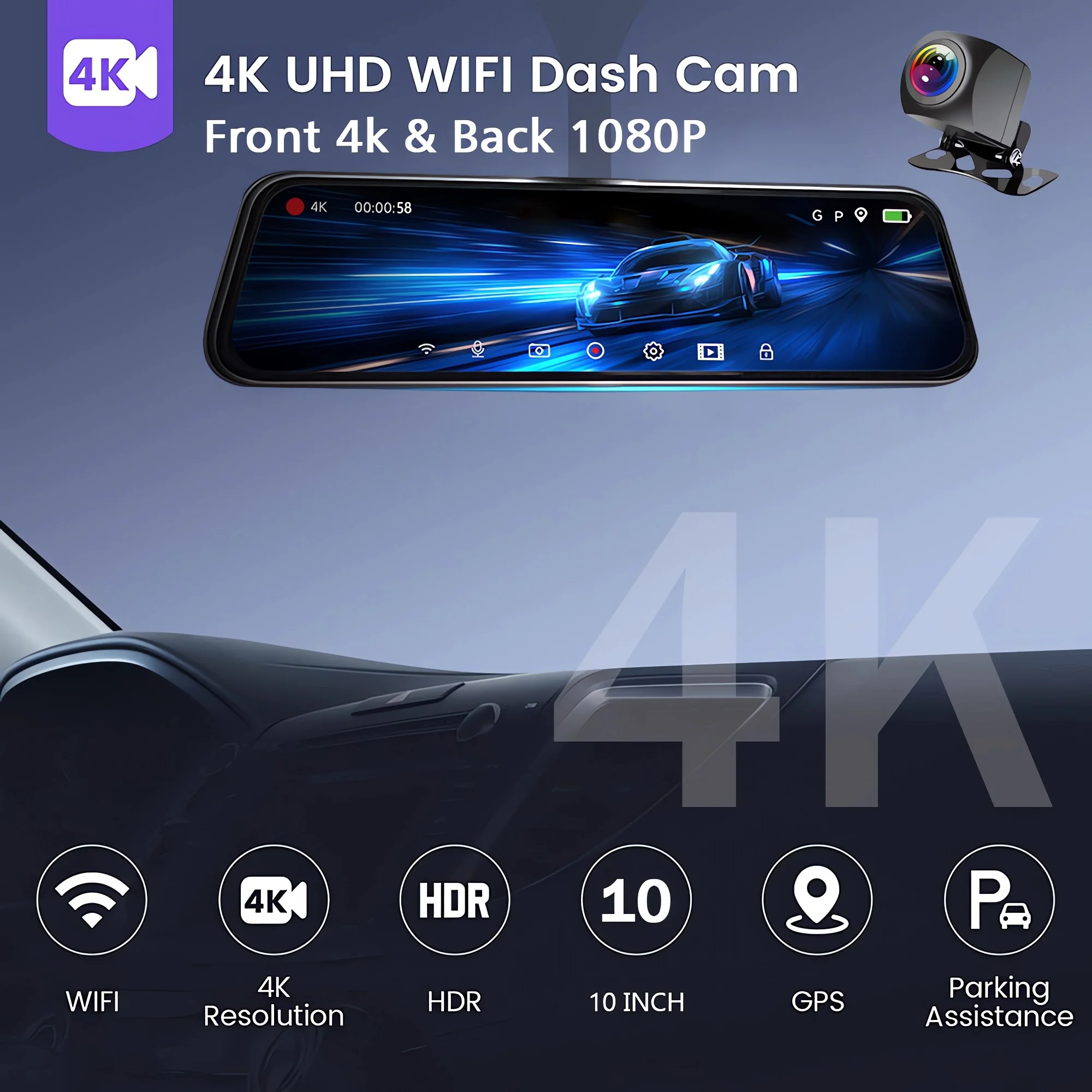
10" Dash Cam 4K 2160P GPS WIFI Car DVR Mirror Dual Lens Dashcam IPS Screen Car Camera Recorder Stream Rear View Mirror
10" Dash Cam 4K 2160P GPS WIFI Car DVR Mirror Dual Lens Dashcam IPS Screen Car Camera Recorder Stream Rear View Mirror
Couldn't load pickup availability
SPECIFICATIONS
Display: IP
Audio Recorded: Yes
Rear Camera: Yes
Choice: yes
App Compatibility: Viidure
Original Package: Yes
GPS logger: External
Chipset Manufacturer: Allwinner
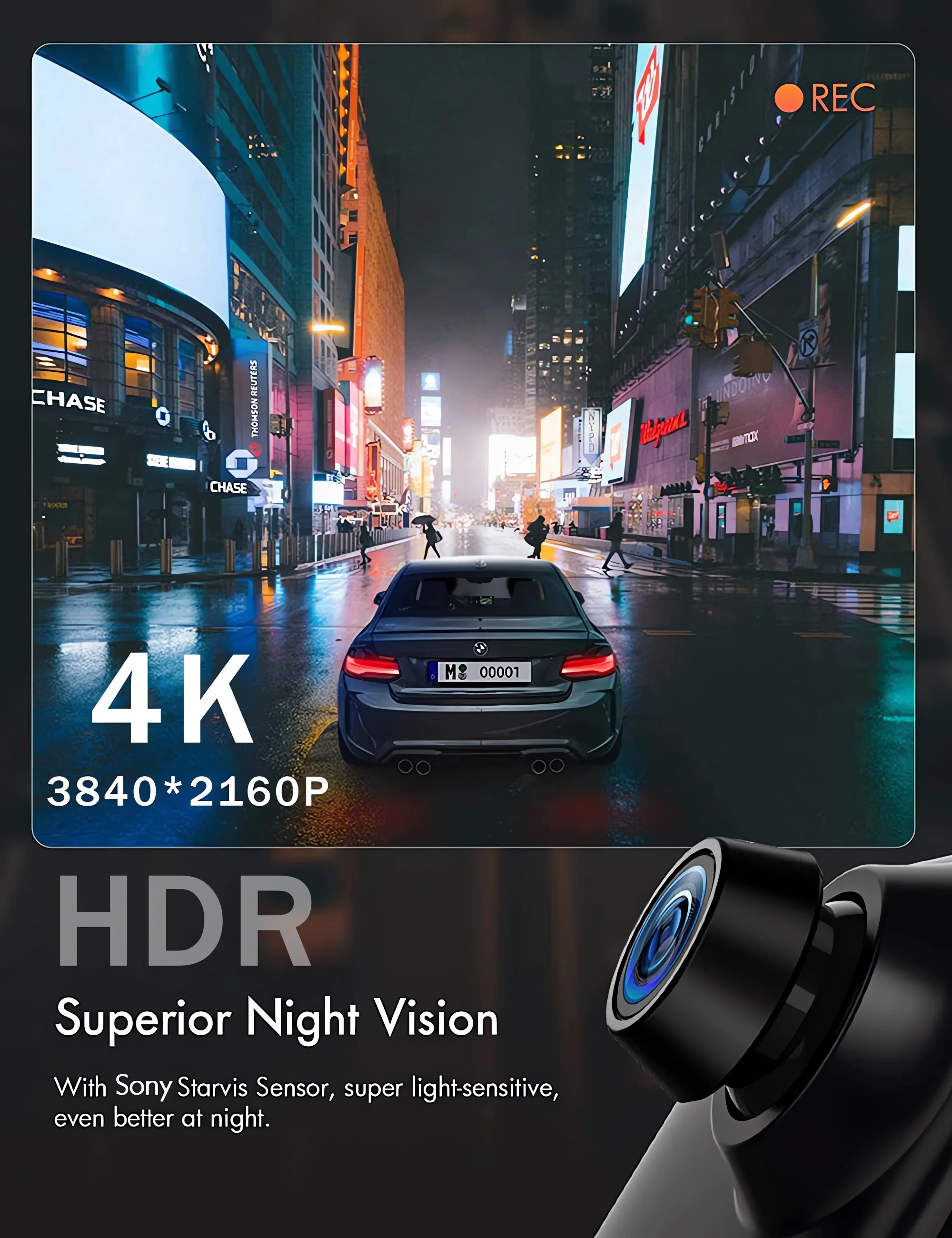
NightShot Function: Yes
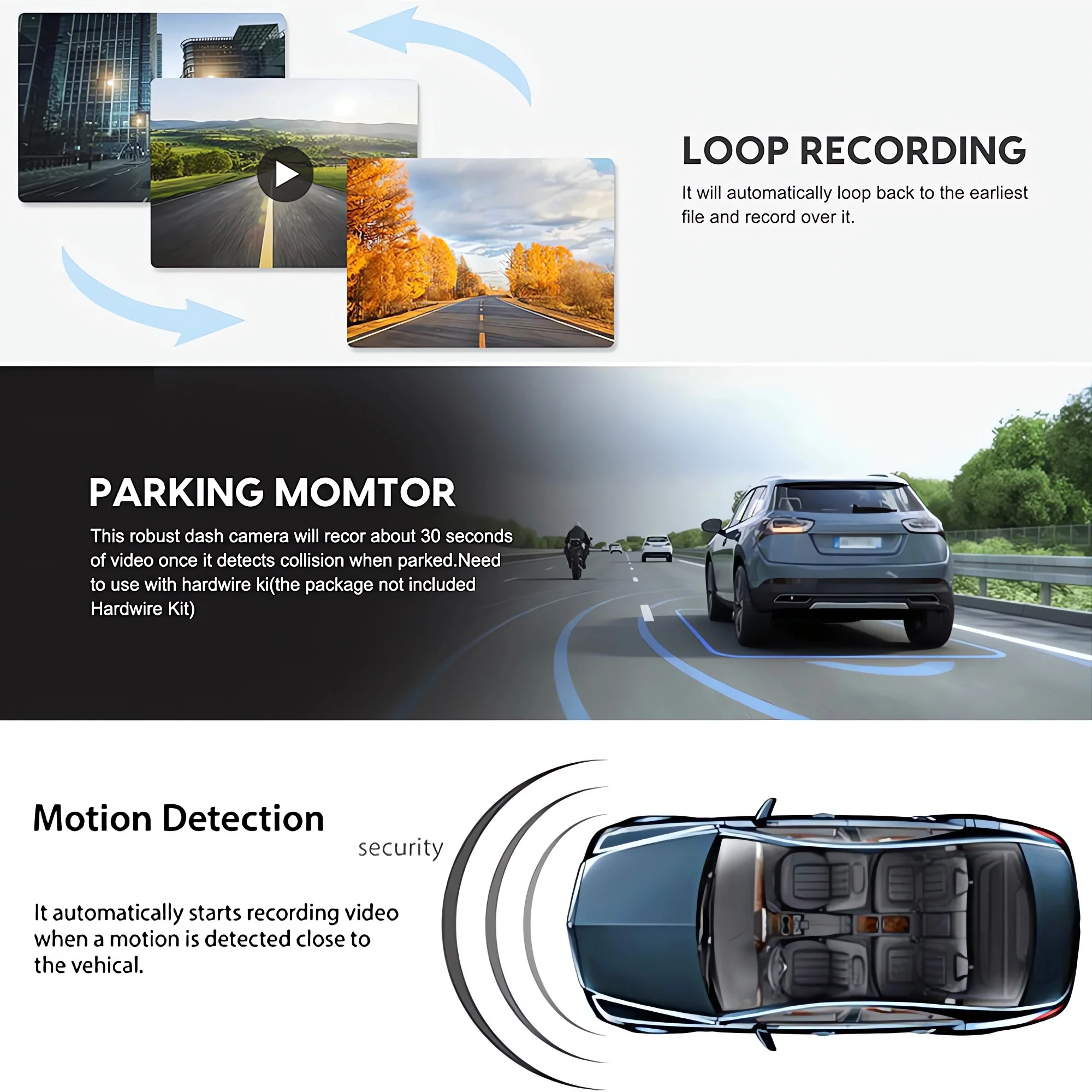
Loop-Cycle Recording Feature: Yes
Special Features: G-sensor,Display Rotate,Digital Zoom,Motion Detection,SD/MMC Card,With Rearview Mirror,Anti Surge Voltage Impact,Anti Fog,Anti Vibration,Real Time Surveillance,Automatic White Balance,Wide Dynamic Range,Wifi Function,Parking Monitor,Speed & Coordinate Recording,3D DNR,External GPS
Frames Per Second: 30
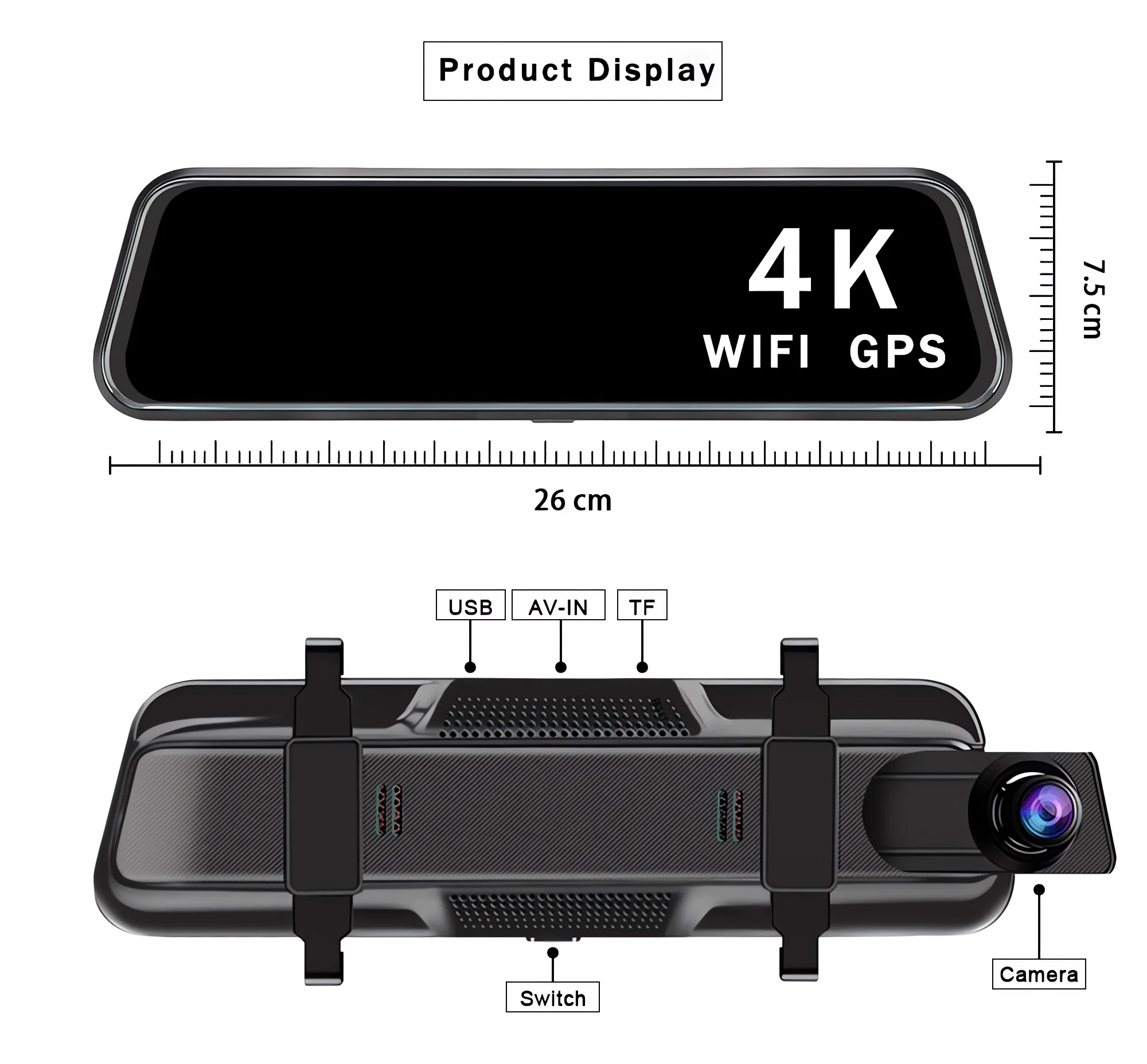
Interface: USB2.0,AV-In,Wi-Fi,Micro SD/TF
OSD Language: Arabic,Chinese (Simplified),Czech,Dutch,English,French,German,Hebrew,Italian,Japanese,Korean,Polish,Portuguese,Russia,Spanish,Turkish
Batteries included: No
Assembly Mode: Rearview Mirror
Brand Name: OMGO
Number Of Lenses: 2
Origin: CN (Origin)
Pixels: 1800Mega
High Concern Chemical: None
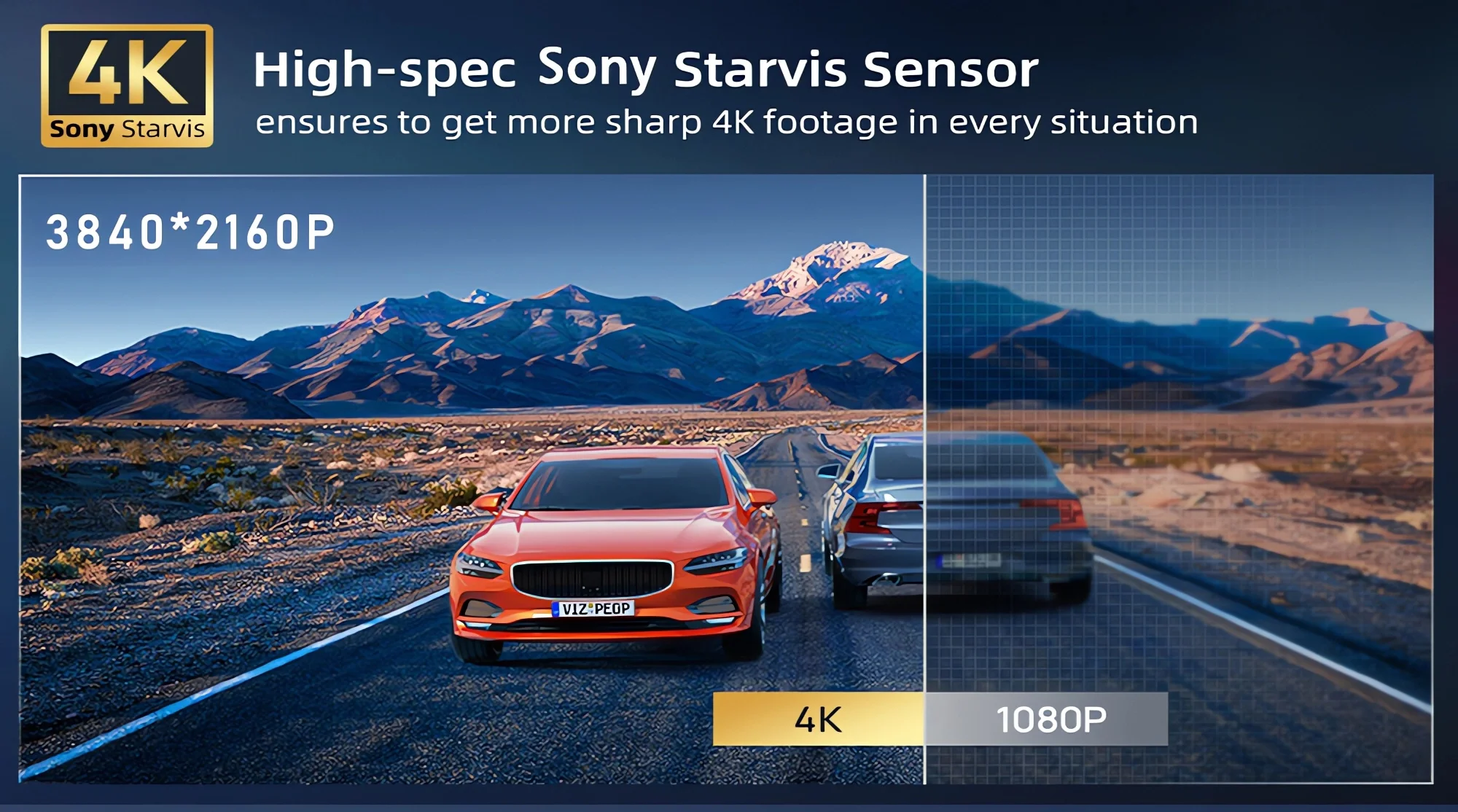
Camera Resolution: 3840x2160
Power Source: Corded Electric
Display Size: 10
Item Type: Car DVR
Memory Card Required Reding Speed: Class 10
Built-in Screen: Yes
Touch Screen: Yes
About memory card formatting:
When you install a memory card for the first time, be sure to format the memory card on the DVR. After formatting, the DVR can match the memory card correctly.
Formatting steps:After installing the memory card, please enter the DVR menu, find the format option, and click to format the memory card. (Important: Formatting the memory card on the computer is an incorrect operation. Be sure to format the memory card on the DVR menu option.)
About WIFI connection:
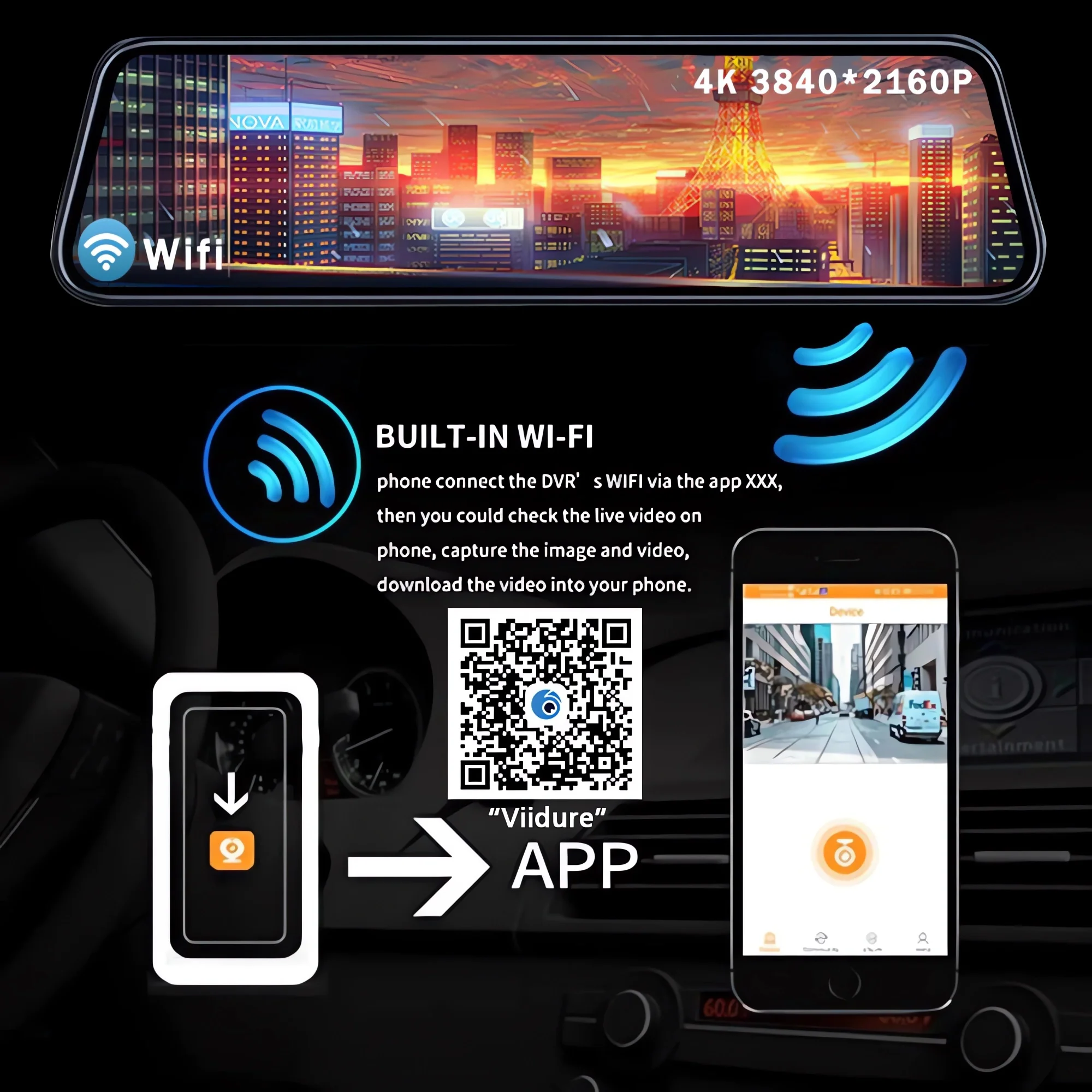
Before connecting to the DVR on the phone, it is necessary to install the WIFI connection APP "Viidure APP" in advance. You can search for "Viidure" to install in the Apple App Store or Google App Market.
Steps:
(1) Enter the DVR menu and enter the WIFl setup menu, turn on the WiFi function;
(2) In the DVR wifi menu, check to get the wifi SSID name and password;
(3) Open the "Viidure" APP on your phone, enter the setup mode, turn on the phone's wifi function, follow the prompts to find the DVR's wifi SSID signal, and enter the password to connect;
(4) After successful setup, you can connect and operate the DVR through the "Viidure" APP.
About the reversing assist function:
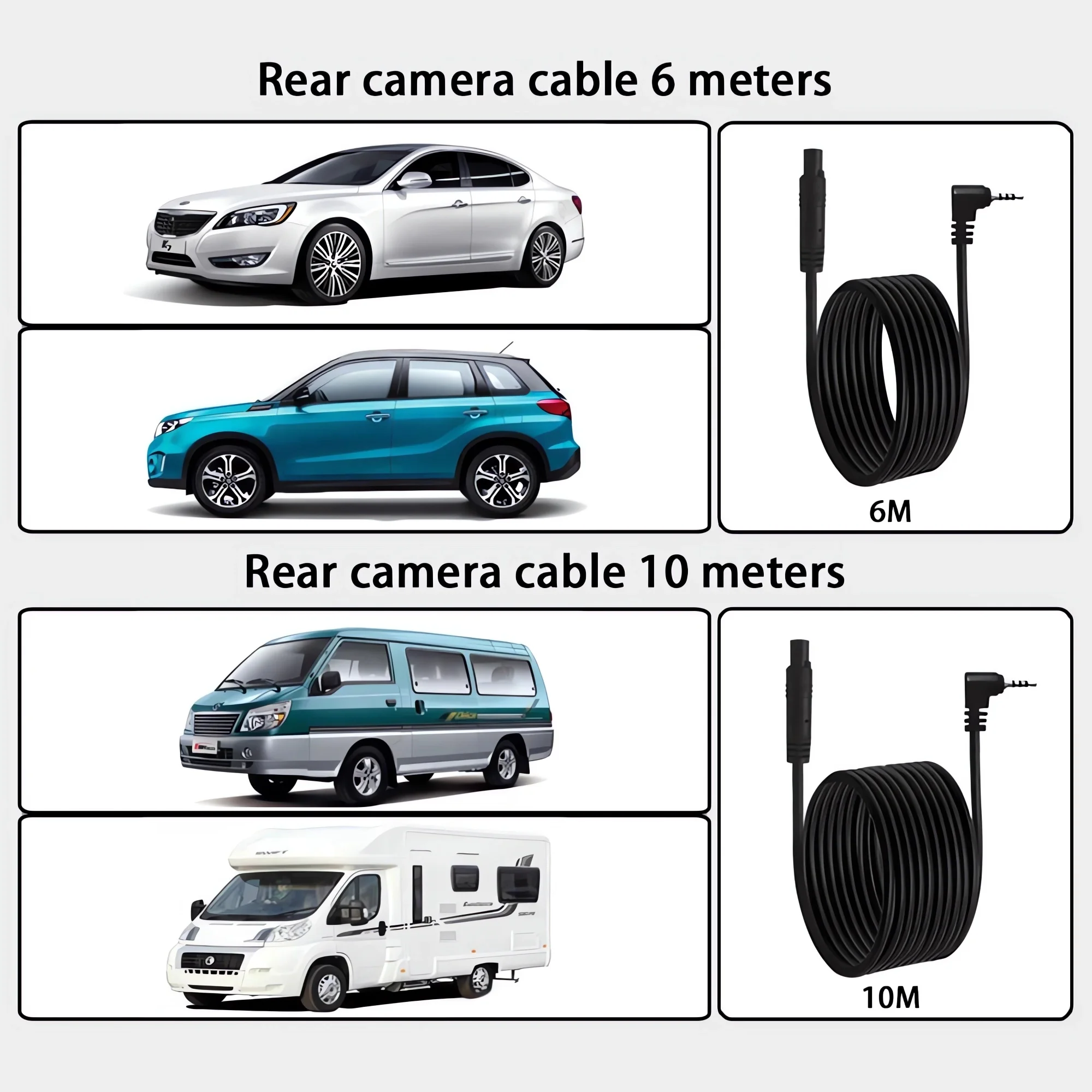
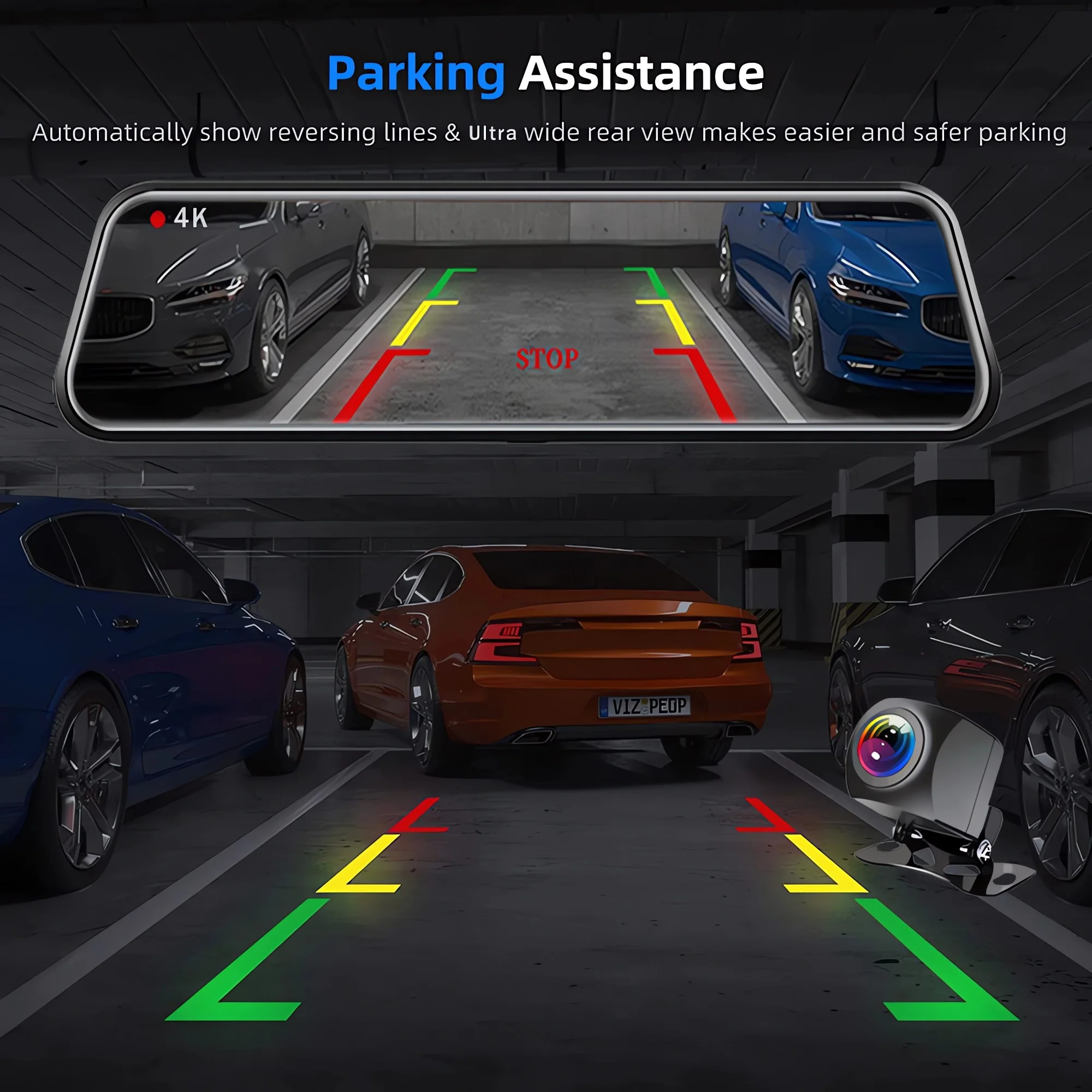
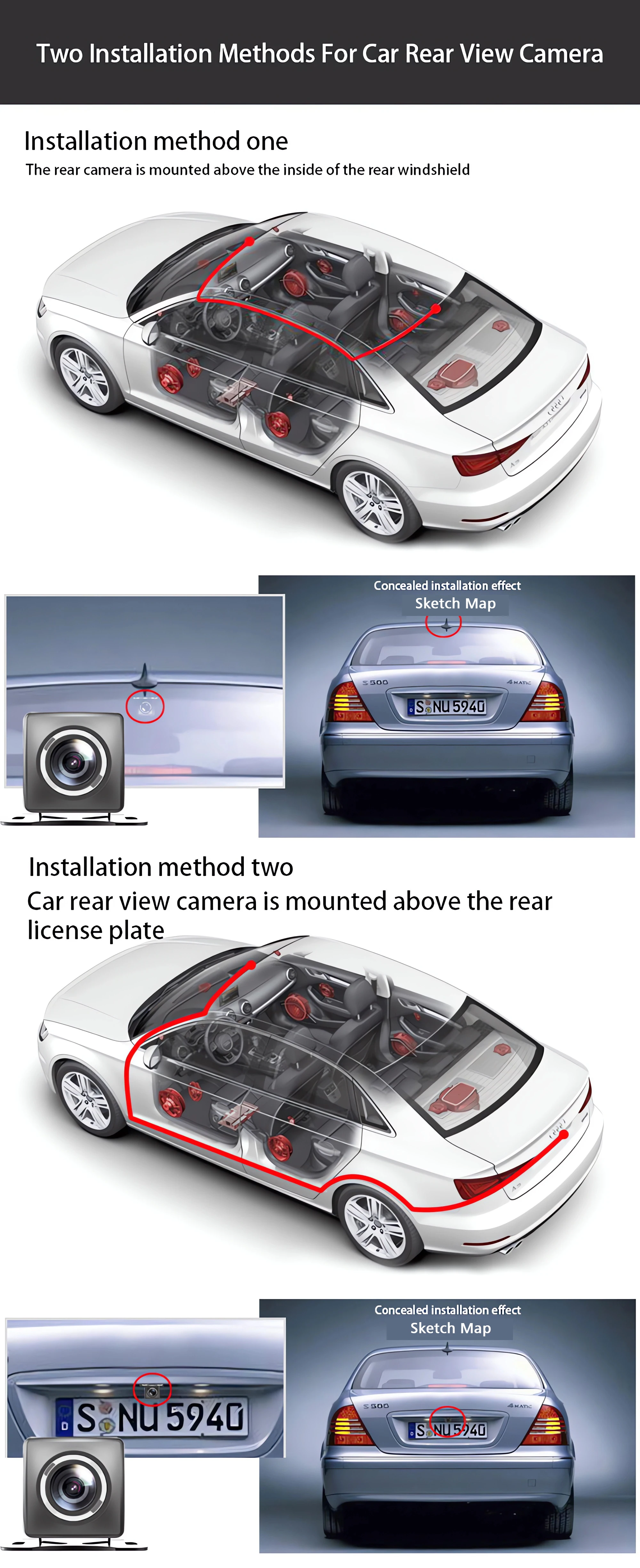
If the kit you ordered includes a reversing camera and you need to implement the reversing assist function, you need to connect the red signal wire of the reversing camera to the car's reversing light (the light will turn on when reversing). If you don't need the reversing assist function, just unplug the red signal wire and leave it unconnected.
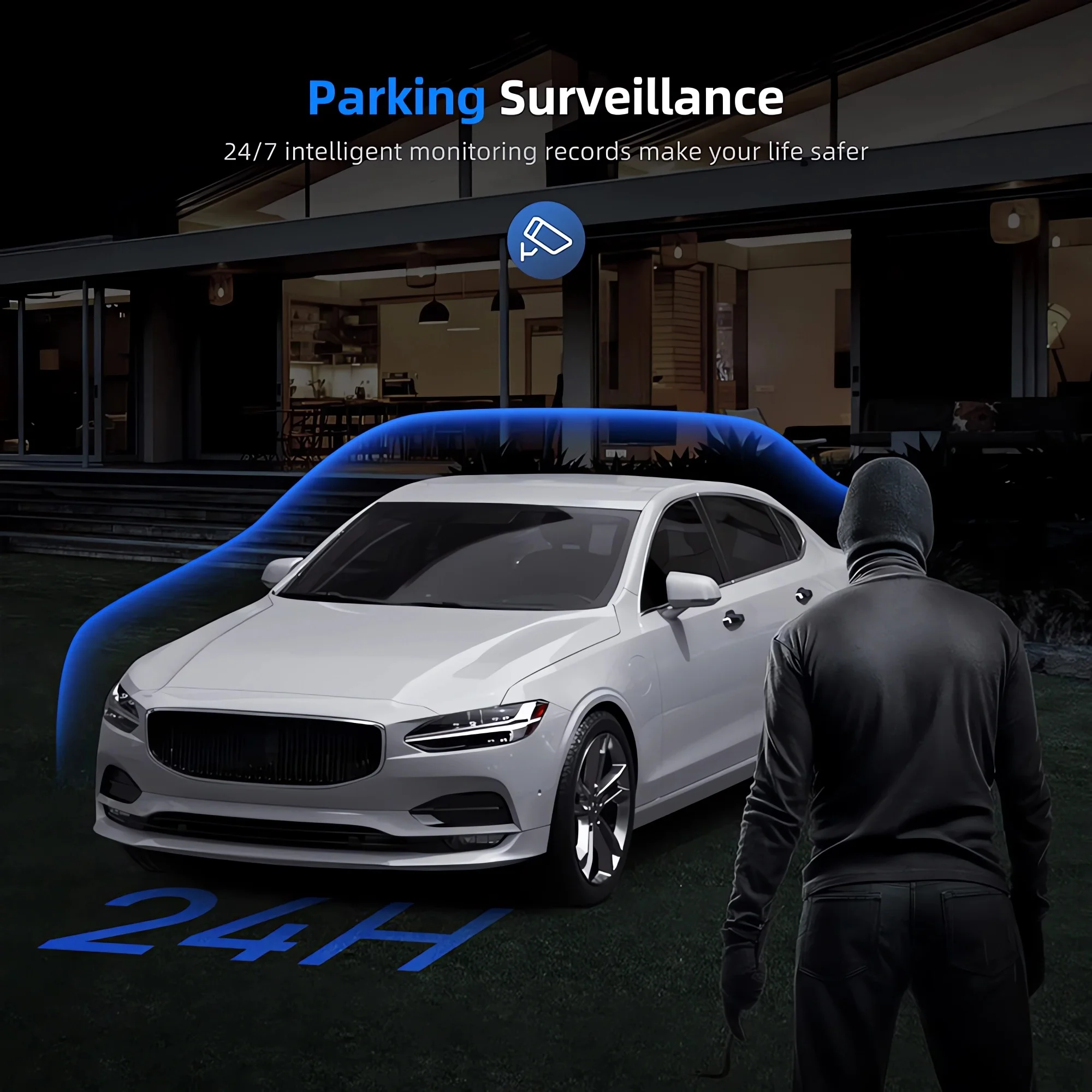
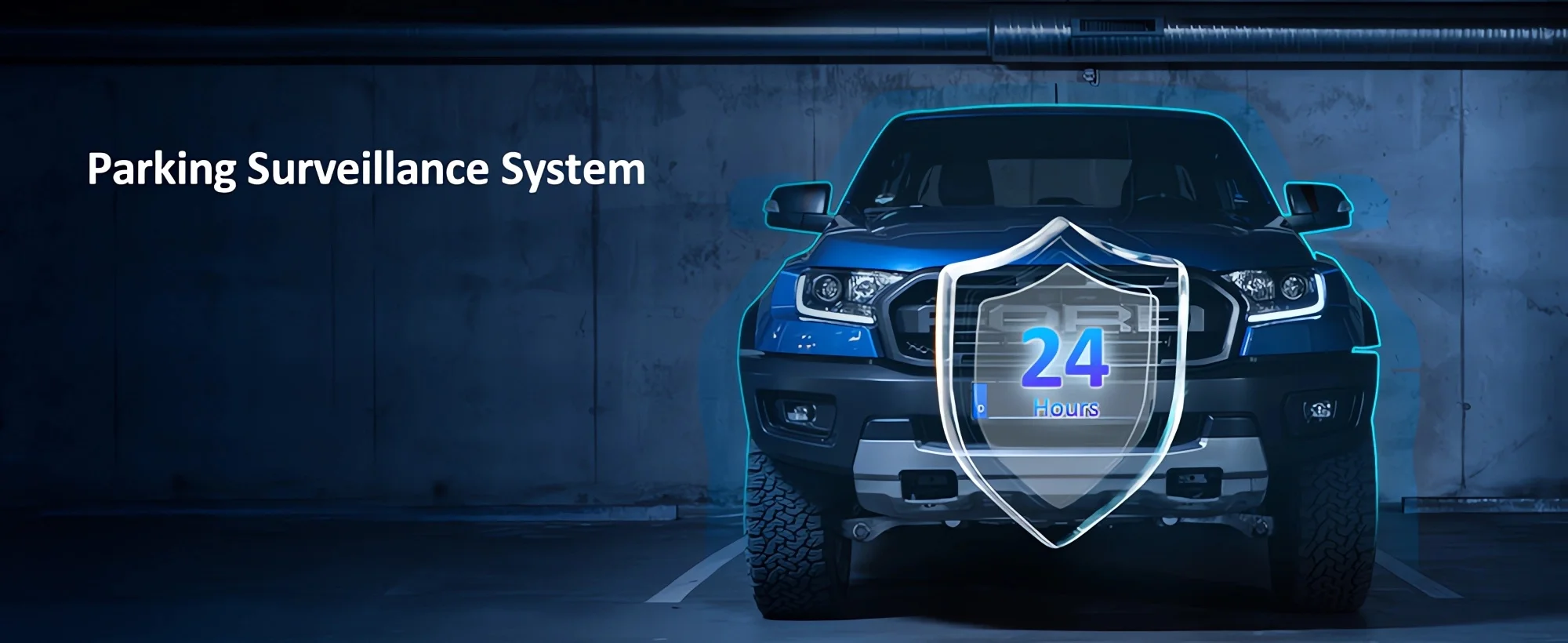
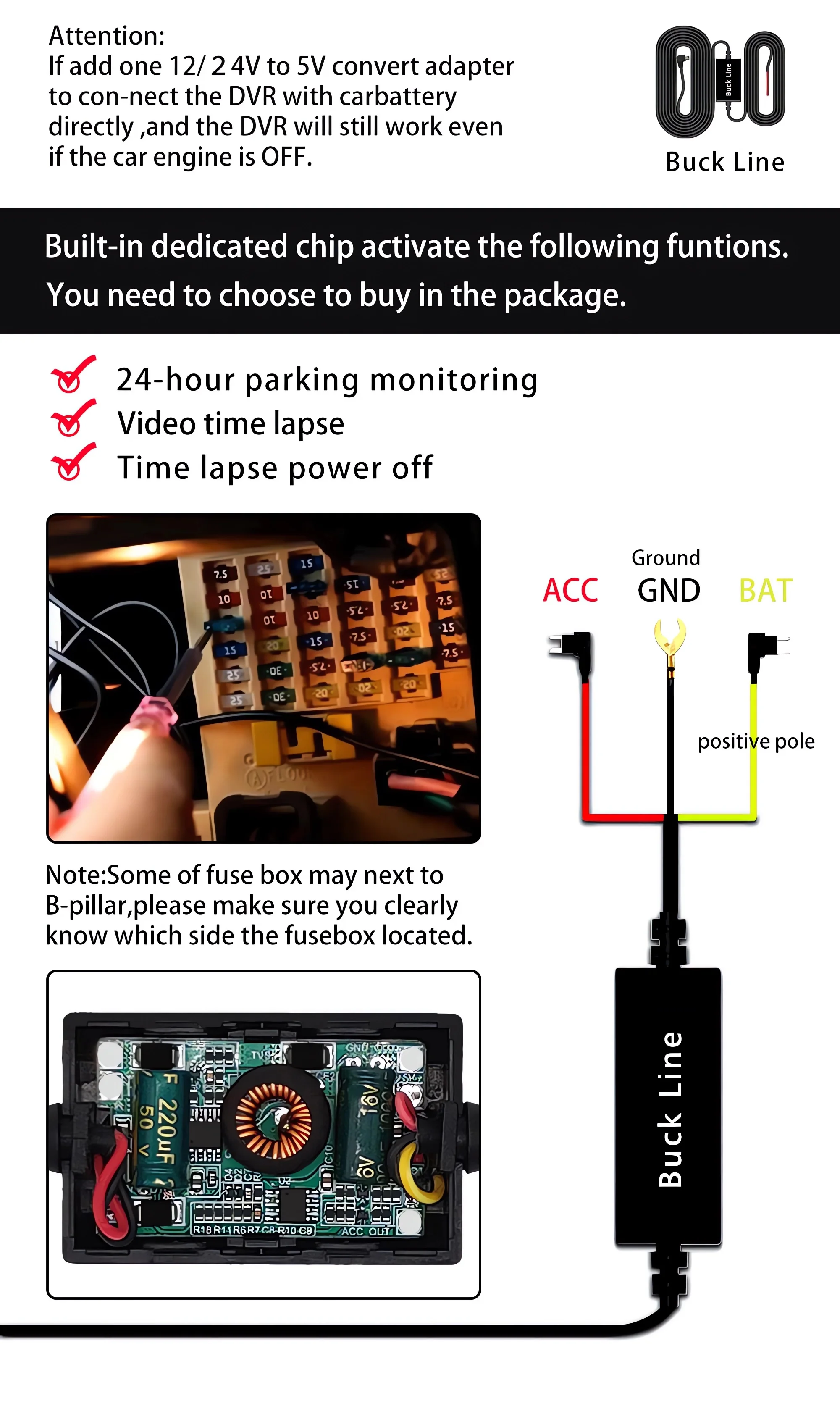
About 24-hour parking monitoring:
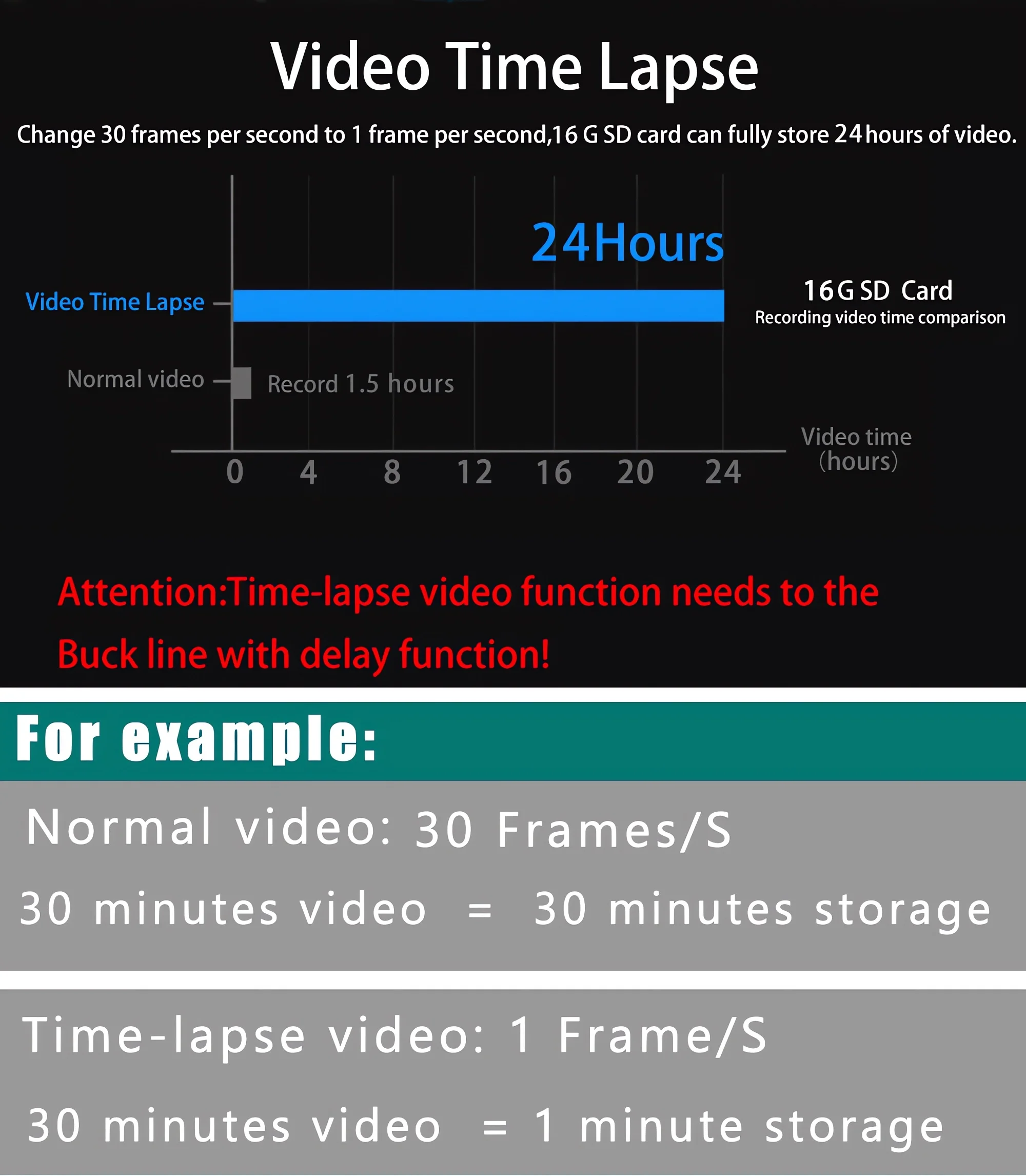
If you need the 24-hour parking monitoring function, you can order the corresponding Buck Line accessories to replace the car charger. Through the Buck line, the DVR power can be obtained directly from the car battery or the car ACC, so that the DVR can maintain normal recording work even when the car is turned off. (Because different car models have different battery interfaces or ACC interfaces, it is not recommended to install it yourself. It is recommended to find a professional to install the Buck line.)
About GPS installation and usage:
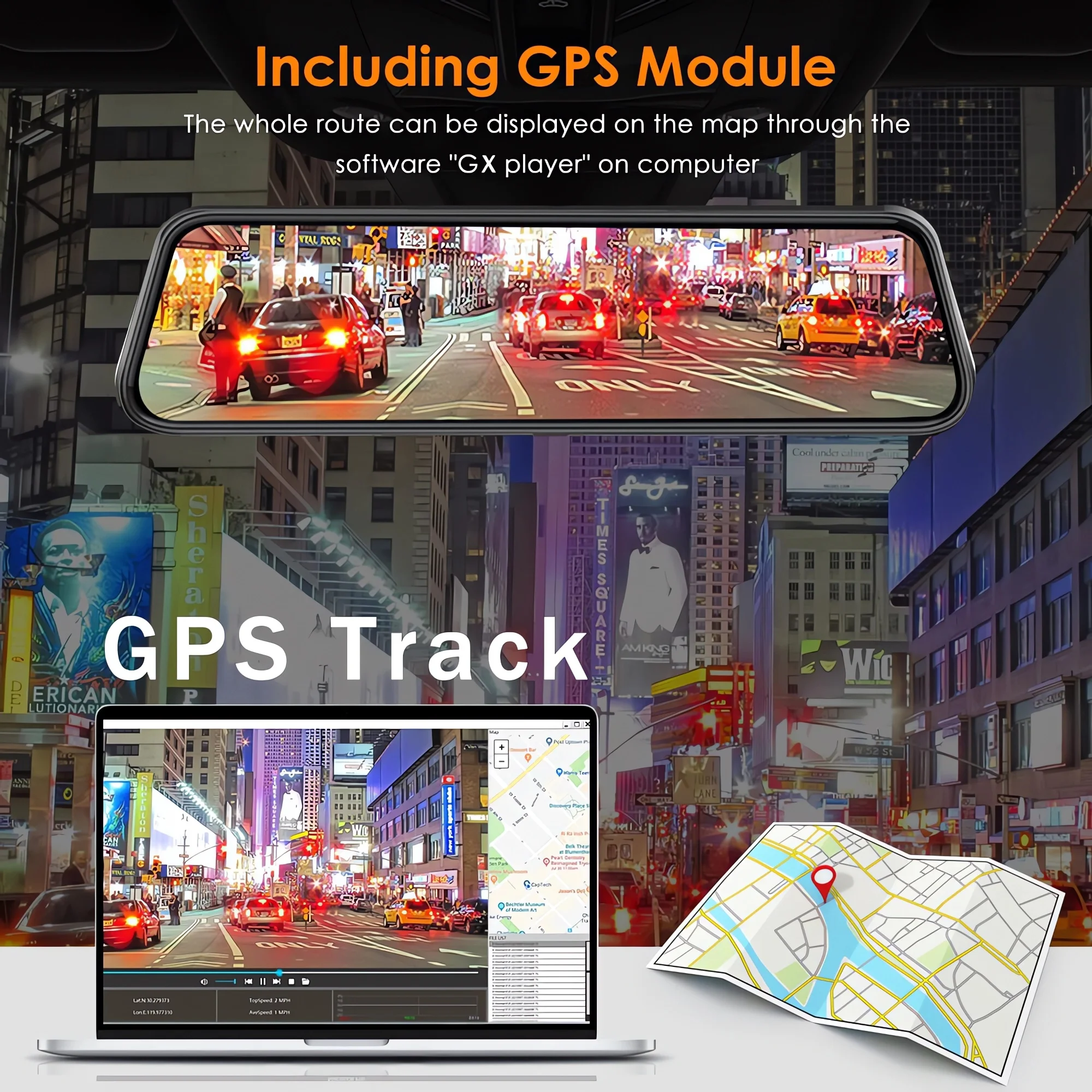
1. Connect the GPS module to the DVR and turn on the GPS function in the DVR menu settings;
2. Install the DVR on the car and start the recording mode. Drive the car outdoors for a certain distance. The GPS module will automatically capture the satellite signal, and the DVR will automatically record the video with the GPS driving track.
GPS track video playback:
1. Install the dedicated GPS video player "GX Player" on your computer. Please enter the link below into your computer browser to download and install;
Download link: http://www.sunningsoft.com/en/pcgps.html
2. Open the DVR video recorded with GPS track information on the computer through "GX player" to play the GPS driving track.