illyshop
Dashcam Rétroviseur 4K UHD GPS WiFi — 11,26" IPS Double Lentille Enregistreur
Impossible de charger la disponibilité du service de retrait
SPECIFICATIONS
Afficher: IP
Angle de vue: 170
Audio enregistré: Oui
Batterie: Intégré
Caméra Arrière: Oui
Capteur d'imagerie: SONY IMX 415
Choice: yes
Code vidéo: h.265
Compatibilité des applications: Viidure
Emballage d'origine: Oui
Enregistreur GPS: Extérieur
Fabricant de Chipset: Tout gagnant
Fonction NightShot: Oui
Fonction d'enregistrement en boucle: Oui
Fonctionnalités spéciales: Capteur G,Rotation de l'affichage,Zoom numérique,carte sd/mmc,Avec rétroviseur,Impact anti-surtension,Anti-buée,Anti-vibration,Surveillance en temps réel,Balance des blancs automatique,Large plage dynamique,fonction wifi,Moniteur de stationnement,Enregistrement de la vitesse et des coordonnées,NDR 3D,GPS externe
Format vidéo: TS
Images Par Seconde: 30
Interface: HDMI,Entrée AV,Wi-Fi,MICROSD/TF
Langue OSD: Arabe,Chinois (Traditionnel),Hollandais,Anglais,FRANÇAIS,allemand,HEBERV,Italien,Japonais,coréen,Polonais,Portugais,Russe,Espagnol,turc
Les piles sont-elles incluses: Non
Longueur du câble: 6M/10M
Mode d'assemblage: rétroviseur
Mémoire externe maximale: 256G
Nom de marque: USEEBEE
Nombre De Lentilles: 2
Origine: CN (Origine)
Pixels: 1800 mégaoctets
Produit chimique à haute préoccupation: Aucun
Résolution de la caméra: 3840 x 2160
Source d'énergie: Électrique filaire
Type D'article: DVR de voiture
Vitesse de lecture requise de la carte mémoire: Classe 10
Écran intégré: Oui
Écran tactile: Oui
About Formatting The Memory Card:
When installing a memory card for the first time, be sure to format the memory card on the DVR. After formatting, the DVR can correctly match the memory card.
Formatting Steps: After installing the memory card, please enter the DVR menu, find the format option, and click to format the memory card.(Important: Formatting the memory card on the computer is an incorrect operation. Please be sure to format the memory card on the DVR's menu option.)
About WIFI Connection:
Before connecting to the DVR on the phone, it is necessary to install the WIFI connection app "Viidure APP" in advance.You can search for "Viidure" installation in the App Store or Google App Market.
Steps:
(1) Enter the DVR menu and enter the WIFl setting menu,nable WiFi function;
(2)In the wifi menu of the DVR, check to obtain the wifi SSID name and password;
(3)Open the "Viidure" APP on your phone, enter the configuration mode, turn on the wifi function of the phone, follow the prompts to find the SSID wifi signal of the DVR and enter the password to connect;
(4)After successful configuration, you can connect and operate the DVR through the "Viidure" APP.
About The Reversing Assist Function:
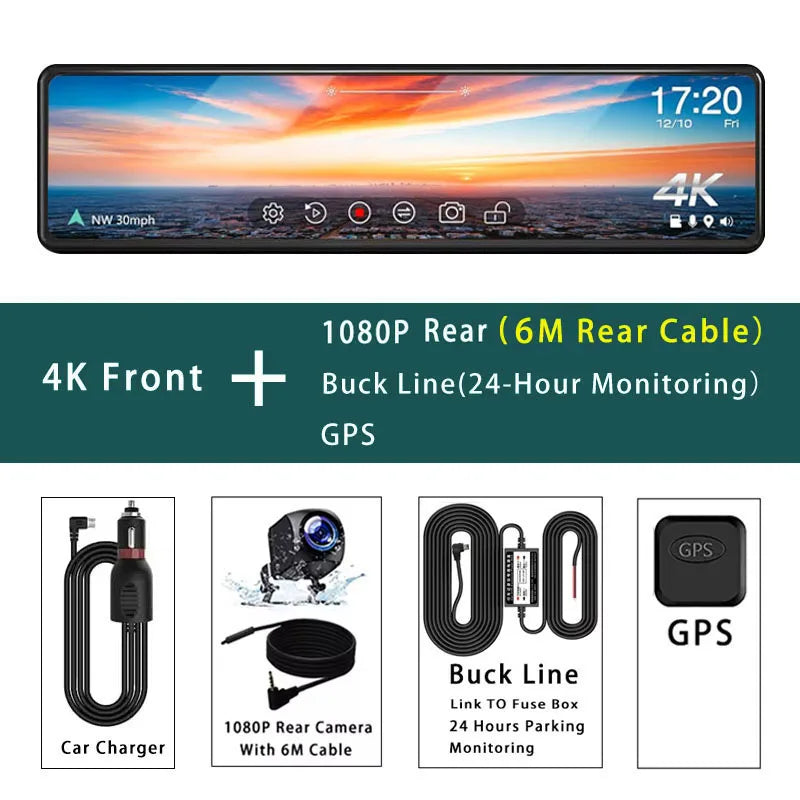
If the kit you ordered includes a rearview camera and you need to implement the reversing assist function, you need to connect the red signal wire of the rearview camera to the car's reversing light (the light will come on when reversing). If you don't need the reverse assist function, just disconnect the red signal wire and leave it unconnected.
About 24-Hour Parking Monitoring:
If you need the 24 hour parking monitoring function, you can order the corresponding Buck Line accessories to replace the car charger.Through Buck Line, the DVR power can be obtained directly from the car battery or car ACC, so that the DVR can maintain normal recording work even when the car is turned off.(Since different car models have different battery interfaces or ACC interfaces, it is not recommended to install it by yourself. It is recommended to find a professional to install the Buck Line.)
About The Installation And Use Of GPS:
1. Connect the GPS module to the DVR and turn on the GPS function in the DVR menu settings;
2. Install the DVR on the car and start the recording mode. Start the car outdoors and drive for a certain distance. The GPS module will automatically capture the satellite signal and the DVR will automatically record the video with the GPS driving track.
Video Playback Of GPS Tracks:
1. Install the GPS dedicated video player "GX Player" on your computer. Please enter the link below in your computer browser to download and install;
Download link: http://www.sunningsoft.com/en/pcgps.html
2. Open the recorded DVR video with GPS track information on the computer through "GX player" to play back the GPS driving track.


Share